
Import Outlook items from a .pst file in Outlook for PC
These instructions assume you've already exported your Outlook email, contacts, and calendar from another instance of Outlook, and now you want to import them to Outlook.
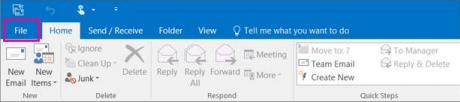
1. At the top of your Outlook ribbon, select File.
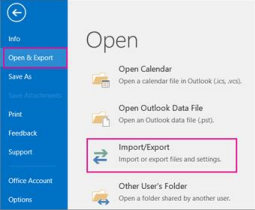
 2. Select Open & Export > Import/Export. This starts the Import/Export wizard.
3. Select Import from another program or file, and then click Next.
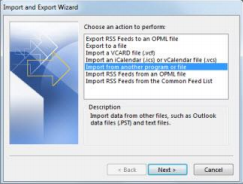
4. Select Outlook Data File (.pst) and click Next.
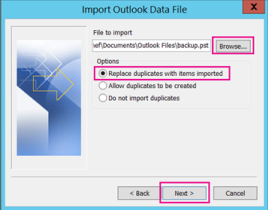
5. Browse to the .pst file you want to import. Under Options, choose how you want to deal with emails and contacts, then choose Next.
6. If a password was assigned to the Outlook Data File (.pst), enter the password, and then click OK. 7. If you're importing the contents of your .pst file into your Office 365 mailbox, choose that mailbox here.
If you're NOT importing into your Office 365 mailbox, choose Import items into the current folder. This imports the data into the folder currently selected.
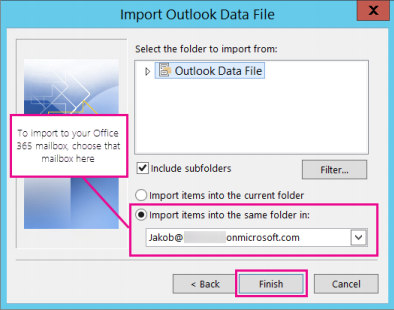
8. Choose Finish. Outlook starts importing the contents of your .pst file immediately. When the progress box disappears, the import is finished.
Comments
0 comments
Please sign in to leave a comment.