

How To …
Create an E-mail Group within your Outlook:
Step 1: On the home tab of Outlook click Address Book.
(Notated in the example below by the red circle and arrow)
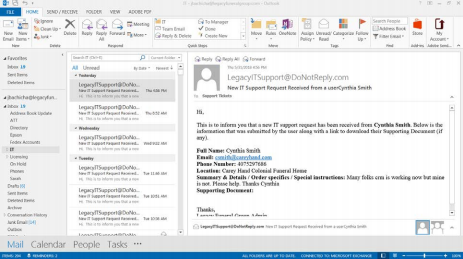 Step 2: Select Contacts in the drop down menu.
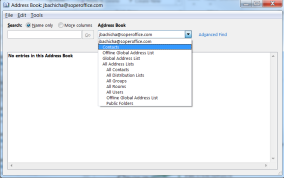
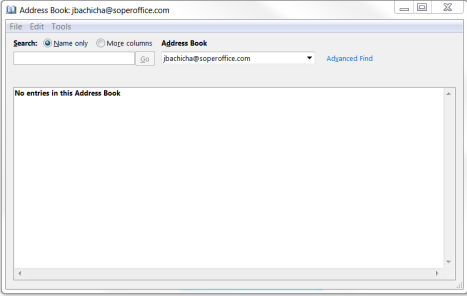
Step 3: Select File followed by New Entry in the drop down menu.
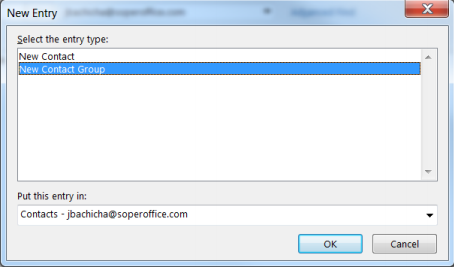
Step 4: Select New Contact Group. Then click OK.
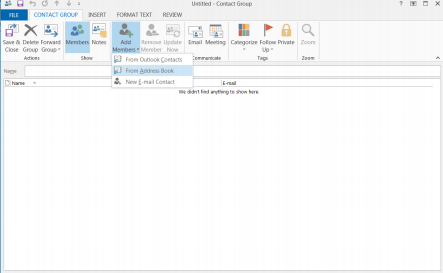
Step 5: Click Add Members, and select From Address Book.
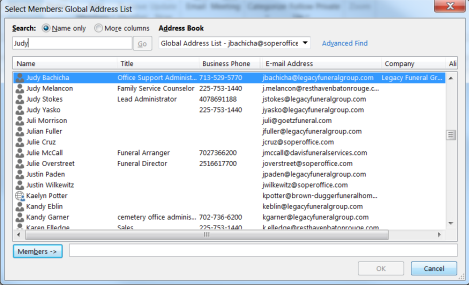
Step 6: Type in the contact that you are looking for. Double Click the name you would like to add and it will appear in the Members bar at the bottom of the screen.
Step 7: Once you have added all of the contacts into the members bar select OK 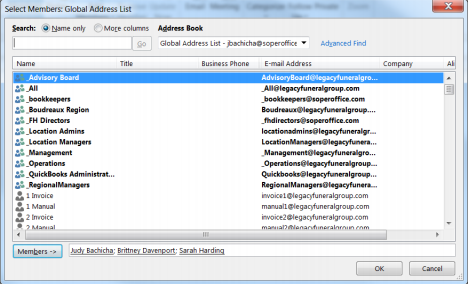
Step 8: Type in what you would like to name the group. Then click Save & Close.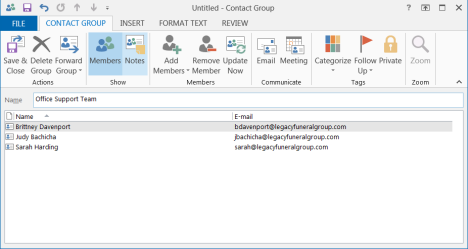
Step 9: Notice that you have created this list in your Address Book under the contacts for your e-mail 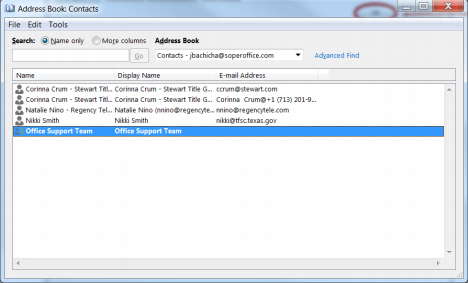
Note: To find this group. Create a new e-mail and click Address Book. Scroll the drop down menu and click Contacts under your e-mail address.
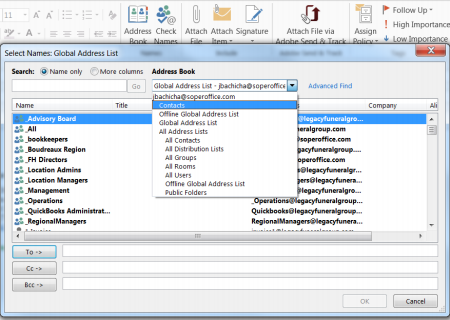
Once there, select your group. Click To followed by OK. This will create an e-mail to your new group.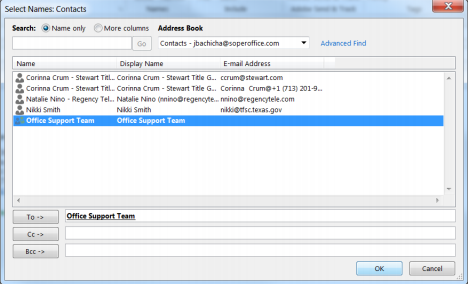
Comments
0 comments
Please sign in to leave a comment.