

Setting Default Applications - Google Chrome & Outlook:
1. Double click to open Google Chrome from your Desktop. Click the “Set as default” button
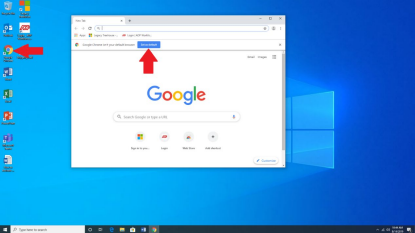
---OR---
Type “default app” into the search bar at the bottom right of your desktop and select “Default Applications”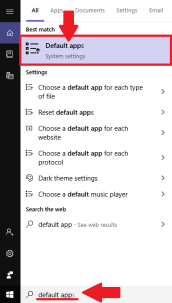

Setting Default Applications - Google Chrome & Outlook:
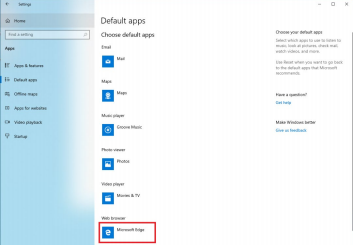
2. Click on “Microsoft Edge” under the “Web browser” section
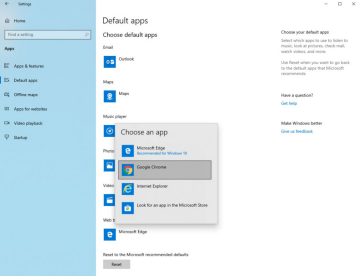
3. Choose “Google Chrome” from the list of apps

Setting Default Applications - Google Chrome & Outlook:
4. You will now see “Google Chrome” selected. Scroll up and click “Mail”
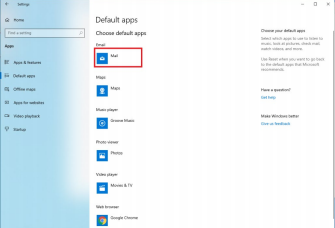
5. Choose “Outlook” from the list of apps
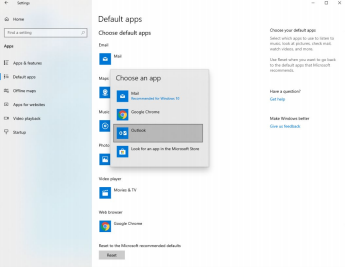

Setting Default Applications - Google Chrome & Outlook:
6. You will now see “Outlook” selected. Close out using the “X” at the top right.
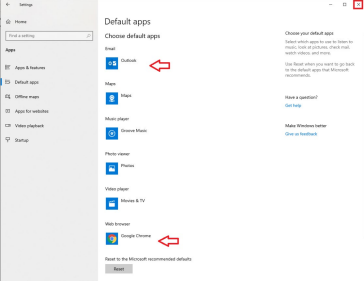
7. Default apps have now been changed!
• Using Outlook as the default will allow you to use the “Scan to Email” function on ScanSnap with no issues
• Using Google Chrome as your browser will allow you browse the internet safely by using the Webroot Extension option – see “Enabling the Webroot Extension” instructions for more information
Comments
0 comments
Please sign in to leave a comment.