

Setting Default Applications - Adobe & Outlook:
1. If you already have Adobe Reader installed, skip to page 3 – if you do not, please follow the directions below to first install Adobe Reader to your desktop.
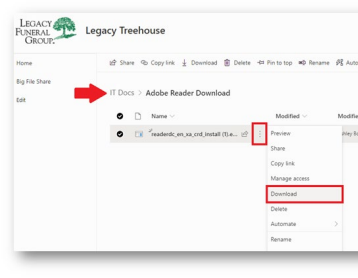
2. Navigate to the Treehouse > Document Libraries > IT Docs > Adobe Reader Download and click the three dots to choose the download option
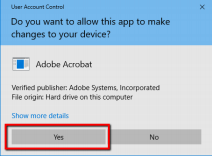
3. Once the file downloads to your computer, you will need to open it and select YES 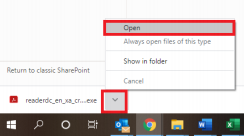

Setting Default Applications - Adobe & Outlook:
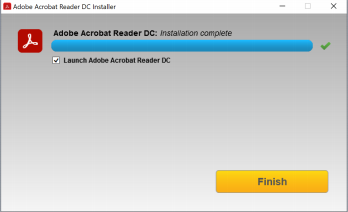
4. Adobe will install
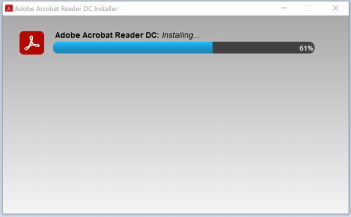
5. Click Finish and proceed to the next page to set Adobe Reader as your default PDF viewer

Setting Default Applications - Adobe & Outlook:
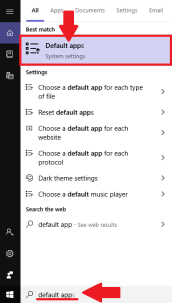
1. Type “default app” into the search bar at the bottom left of your desktop and select “Default Apps, System Settings”
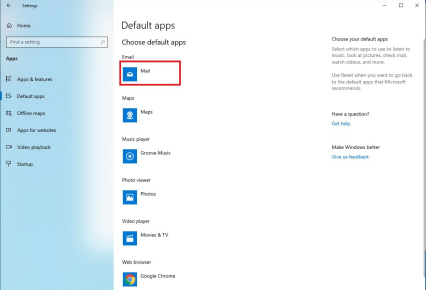
2. Select the top option that says Mail or Outlook:

Setting Default Applications - Adobe & Outlook:
3. Select “Outlook” from the pop-up window:
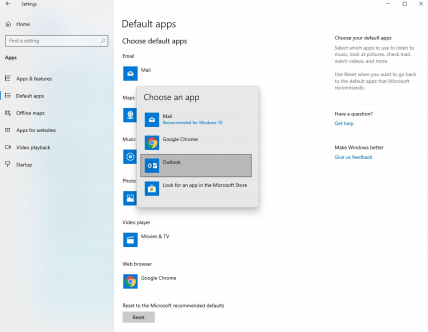

4. You will now see Outlook selected as your Email app
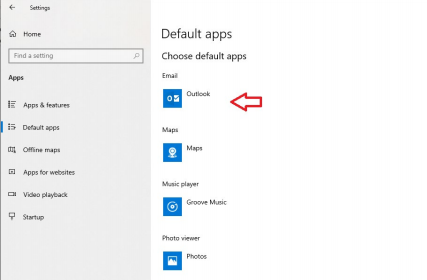
Setting Default Applications - Adobe & Outlook:
5. Scroll down the page and click the blue text that reads “Choose default apps by file type”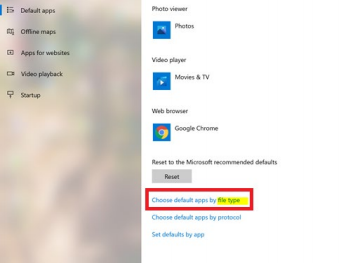
6. Scroll down on this page until you get to “.pdf” (They are in alphabetical order)
Setting Default Applications - Adobe & Outlook:
7. Click on the program next to .pdf, in this case Microsoft Edge, and select Adobe from the window that pops up 8. You are complete!
Comments
0 comments
Please sign in to leave a comment.