

Set up your Email in Outlook
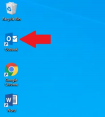
1. Double click on Outlook to open the application
2. A small window will appear as pictured below. It will probably have an email address that is not yours preloaded – erase that email address and type your own. Be sure to use your emailaddress@soperoffice.com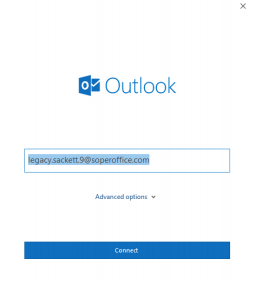

3. Select “Connect” and wait for the password box to pop up
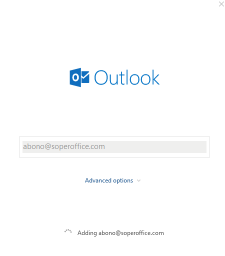
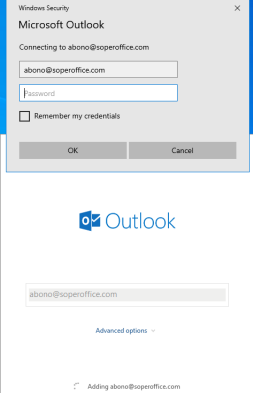
4. Type your email password and check the box next to “Remember my credentials” if you would like Outlook to remember your password. Select “OK”

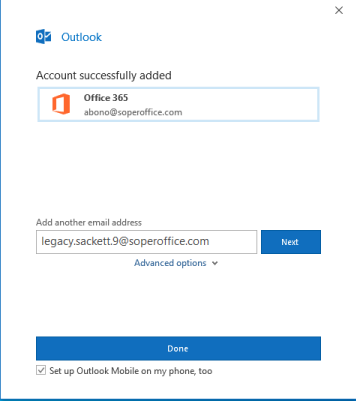
5. Uncheck the “Set up Outlook Mobile on my phone, too” box and select “Done”.
6. If you wish to set up another email address to load in your outlook, type the email address in the box under “Add another email address” and click “Next”
7. Outlook will take some time to download all your emails – you can view the progress at the bottom right of the Outlook application:

Comments
0 comments
Please sign in to leave a comment.