

Adding your Legacy email to an iPhone:
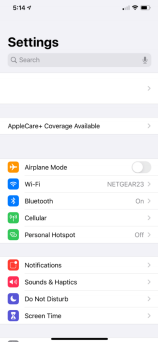
1. From your home screen, select the “Settings” App

2. In the “Settings” menu, scroll down and select “Passwords & Accounts”
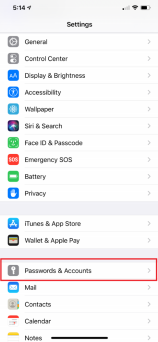

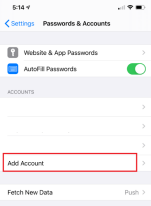
3. In the “Passwords & Accounts” menu, select “Add Account”, then select “Microsoft Exchange” 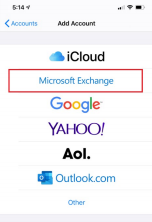
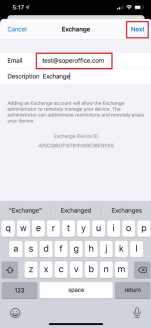
4. Type your “@soperoffice.com” username into the “Email” space
5. You can leave the “Description” space as “Exchange” or type in a description such as “Legacy Email” or “LFG Email” so that you will know it is your work email account
6. Click “Next”

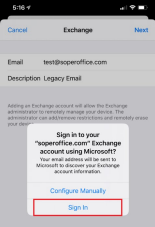
7. Choose “Sign In” on the dialog box that pops up
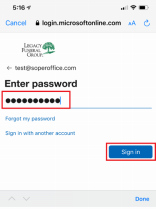
8. Enter your Treehouse/Email password in the space & click “Sign in”

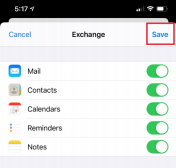
9. Select the options that you want to sync & click “Save”
(all items that are toggled to green will sync)
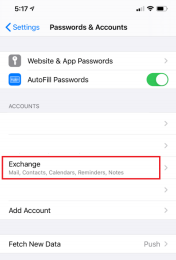
10. You should now see “Exchange” (or the description you entered) appear
11. Go to the home page and select the “Mail” icon to check your email.
Comments
0 comments
Please sign in to leave a comment.