

Pin an Application to the Taskbar
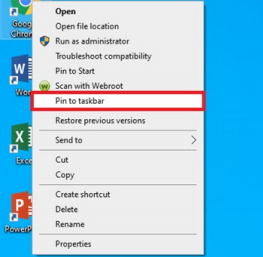
1. Right click the application that you wish to pin to the taskbar. We will use “Google Chrome”
2. Select “Pin to taskbar” and the Google Chrome shortcut will then appear on the taskbar
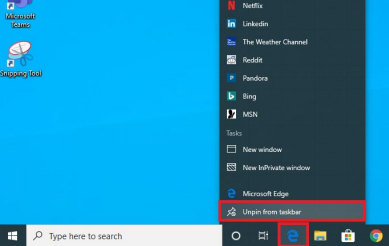
3. To remove an application from the task bar that you do not use, such as “Microsoft Edge”, right click on the Edge shortcut and select “Unpin from taskbar”
4. I suggest pinning the following apps to your taskbar: Outlook, Windows Explorer(yellow folder to find My Documents, Pictures, etc…) , Google Chrome, Word, Excel
5. To create shortcuts to Legacy Apps like Passare or FDLIC see “How to Create Desktop Shortcuts to Web Applications” article
Comments
0 comments
Please sign in to leave a comment.