

How to create shortcuts on your desktop to websites you visit frequently:
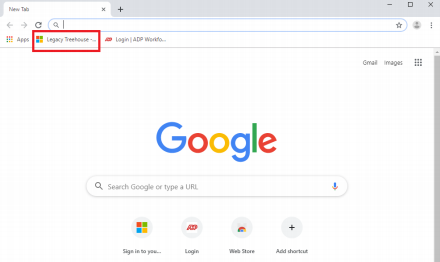
1. Open Google Chrome & navigate to the website you want to create a desktop shortcut for - you can find most of these links on the Treehouse under the “Web Links” folder – select the “Legacy Treehouse” shortcut. If you already have the webpage that you want to create a shortcut to, skip to step 5
2. Sign in using your Treehouse credentials (your emailaddress@soperoffice.com and your email password)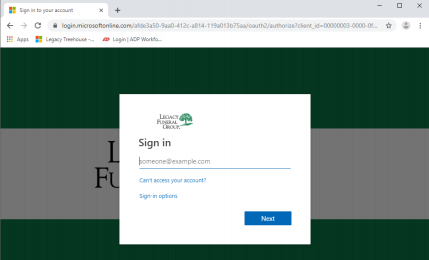

How to create shortcuts on your desktop to websites you visit frequently continued…
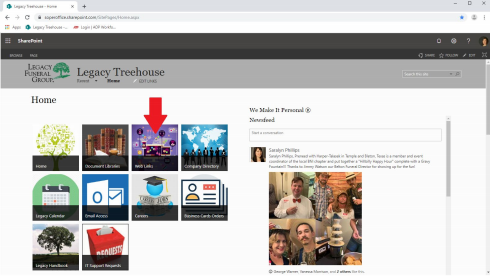
3. Click on “Web Links”
4. Scroll down & select the link you wish to create the shortcut for. We will use “Pipeline” as an example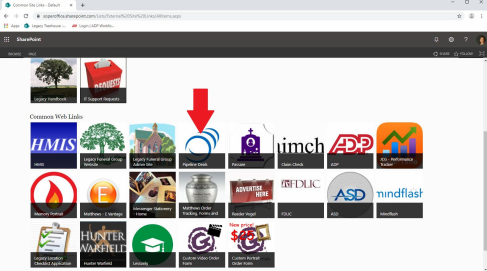

How to create shortcuts on your desktop to websites you visit frequently continued…
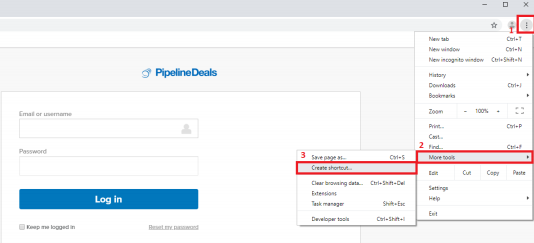
5. Once you are on the site you want to create the shortcut for:
a. Select the 3 vertical dots at the top right
b. Select “More Tools”
c. Select “Create Shortcut…”
 6. Rename the shortcut to how you want it to appear & click “Create”
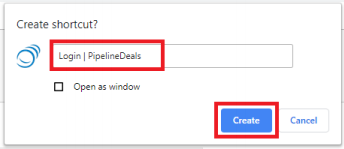
7. The shortcut will now appear on your Desktop. See “How to Pin an Application to the Taskbar” article to learn about pinning the app to your taskbar

Comments
0 comments
Please sign in to leave a comment.